Working with Python
There are several ways to work with Python.
Python REPL (Read, Evaluate and Print Loop)
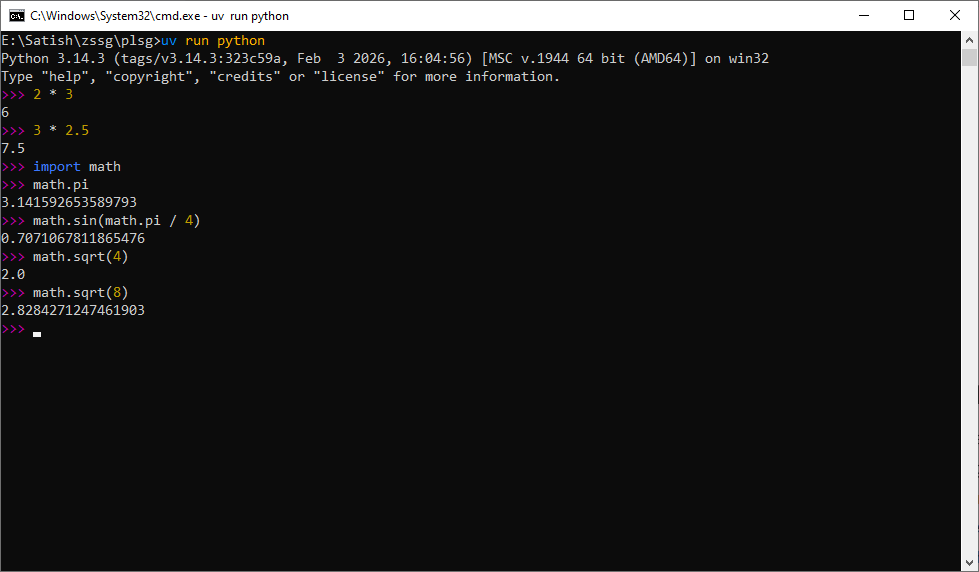
The Python REPL is the interactive Python interpreter shell. When started without specifying a filename, it opens as an interactive shell where you can type Python code and press Enter to execute it. This is the easiest way to start learning Python. Since it works best with one or a few lines of code at a time, it is not well suited for writing larger programs — but if you are new to Python, it is an excellent way to get familiar with the language.
To exit the Python REPL and return to the command line, press Ctrl+Z followed by Enter on Windows (Ctrl+D on GNU/Linux and macOS).
>>> 2 + 3
5
>>> 2 * 3
6
>>> 3 * 2.5
7.5
>>> import math
>>> math.pi
3.141592653589793
>>> math.sin(math.pi / 4)
0.7071067811865476
>>> math.sqrt(4)
2.0
>>> math.sqrt(8)
2.8284271247461903
>>> _
2.8284271247461903
Note
In the Python REPL, the special variable _ always holds the result of the last evaluated expression. In the example above, _ would hold the value 2.8284271247461903. This can be handy when you want to reuse the result of the previous expression without retyping it.
Code Editors
Once you have a basic understanding of Python, it is best to switch to writing code using a code editor. Any text editor can be used to write Python code, save it to the filesystem and then invoke the Python interpreter to execute it.
Write the following code and save it as main.py:
This cycle of writing, saving, executing and modifying code is made easier with a code editor such as VS Code, which has a built-in terminal and a file explorer that lets you open, create, rename and delete files without leaving the editor. Learn more about code editors.
Web Notebooks/IDE
JupyterLab and Jupyter notebooks
A web browser-based environment such as JupyterLab does away with the need to install a separate code editor. You simply install the JupyterLab Python package and you can begin working with Python straight away. JupyterLab calls its individual files Jupyter Notebooks. A Jupyter Notebook can contain both Python code and documentation written in a markup language called Markdown. This lets you bundle code, its output and explanatory documentation into a single file. You can share it with anyone who has JupyterLab installed — they can execute the notebook, inspect the code, examine its output and read the documentation. Markdown is simple to learn and supports mathematical equations, making Jupyter notebooks a powerful tool for sharing code and documentation, particularly in academic or research settings.
A Jupyter notebook consists of cells. Each cell can be either:
- A code cell, where you can type and execute Python code and see the output displayed below the cell, or
- A Markdown cell, where you can type Markdown and execute the cell to render it as HTML.
Here is an example of writing documentation in Markdown:
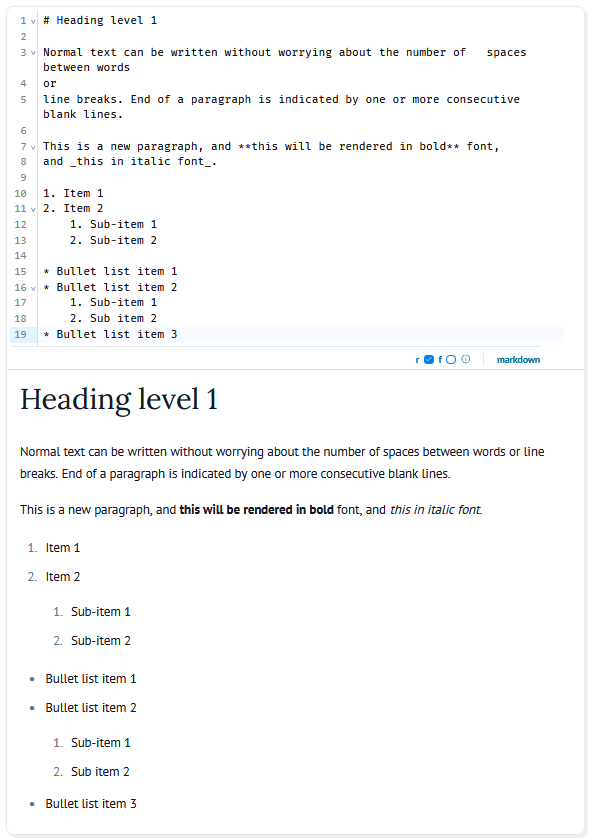
Markdown can render mathematical equations written in the \(\LaTeX\) markup language. Here are two examples:
A display equation, enclosed by a pair of$$, is rendered on its own line as follows:
Equations can also be written inline by enclosing them between two $ characters:
Refer to the Markdown documentation for further details.
Reactive notebooks
Executing a cell in a Jupyter notebook affects only that cell. Other cells that depend on variables changed by that execution are not automatically updated. It is therefore the programmer's responsibility to know which cells are interdependent and to execute them accordingly — or to execute all cells at once.
marimo reactive notebooks
marimo is similar to a Jupyter notebook, but is reactive. When one cell is executed, marimo automatically re-executes all cells affected by the resulting changes — much like a spreadsheet, where changing the value in one cell automatically recalculates all cells that depend on it.