Session 10: Object Oriented Programming - Part 2
Date: 16-05-2026 4:00 pm to 6:00 pm
Agenda
- Review of previous sessions
- Answers to queries
dataclasses.dataclass- Filtering and grouping data with Pandas
Object Oriented Programming (contd.)
The SearchDir class created in Session 9 can be simplified using the dataclass decorator from the built-in dataclasses module.
Simplify class definition - dataclass decorator
The primary purpose of __init__() is to initialize data into an instance, and is a good candidate for automation. That is the purpose of dataclasses.dataclass decorator. In addition to providing the __init__() method, the dataclass decorator provides the __str__() and several other dunder methods. The class definition reduces to the following:
Note
- All the data fields are listed along with their data type.
- Data fields with default values must be listed toward the end. A data field without a default value cannot be listed after a data field having a default value (similar to function parameters).
Command Line Interfaces
Type the following code in a code editor (not in the Python REPL):
and run it from the command line:
Note
sysis a built-in module and gives access to several system information.sys.argvreturns a list of command line arguments typed at the command line when executing the application.- The first argument is the name of the application, in this case,
app.py - All items in the
sys.argvlist are of typestr.sys.argv[0]is always the name of the application itself.Arguments starting from index1can be treated as arguments to the application and interpreted as appropriate.
Let us use sys.argv and assume that the arguments have the following meaning:
sys.argv[1]represents the path to be searched, and is a required argument.sys.argv[2]represents the filename pattern to be searched, and is a required argument.sys.argv[3]represents whether to search the path recursively, and is an optional argument, defaulting to "false". User must type true to indicate the search to be recursive.
Note
- Filename pattern such as
*.pymust be enclosed within single or double quotes. Otherwise the command shell expands it to a list of filenames before calling the application. - The third argument is case-insensitive becaue we convert it to lowercase before checking its value.
- Any value other than true is treated as false when evaluating the third command line argument.
Test this with different number of command line arguments:
> uv run -- python app.py
Usage: python app.py path pattern [false]
> uv run -- python app.py .
Usage: python app.py path pattern [false]
> uv run -- python app.py . "*.py"
Path: ., Pattern: .py, Recursive search: False
> uv run -- python app.py . "*.py" true
Path: ., Pattern: .py, Recursive search: True
You can now integrate this with the program, but let us import the SearchDir object from searchdir module and modify app.py to provide command line argument parsing.
Execute this application as follows:
> uv run -- python app.py . "*.py"
app.py (22)
main.py (10)
searchdir.py (46)
vector.py (37)
vector2.py (41)
Files: 5, Total lines: 156
Python has several libraries for argument parsing, argparse being one of the oldest and very comprehensive but come with a learning curve. There are more recent and simpler packages such as Typer that simplify this process. The following code does the same as the previous version of the program. Study the Typer documentation to learn more, the code below is presented without any explanation.
Remember to install Typer with:
Let us rewrite app.py to use typer instead of the parse_args() function. Here is the code:
| app.py | |
|---|---|
> uv run -- python app.py

 Usage: app.py [OPTIONS] PATH PATTERN

╭─ Arguments ──────────────────────────────────────────────────────────────────╮
│ *    path         TEXT  [required]                                           │
│ *    pattern      TEXT  [required]                                           │
╰──────────────────────────────────────────────────────────────────────────────╯
╭─ Options ────────────────────────────────────────────────────────────────────╮
│ --recurse    --no-recurse      [default: no-recurse]                         │
│ --help                         Show this message and exit.                   │
╰──────────────────────────────────────────────────────────────────────────────╯
> uv run -- python app.py
Usage: app.py [OPTIONS] PATH PATTERN
Try 'app.py --help' for help.
╭─ Error ──────────────────────────────────────────────────────────────────────╮
│ Missing argument 'PATH'.                                                     │
╰──────────────────────────────────────────────────────────────────────────────╯
> uv run -- python app.py .
Usage: app.py [OPTIONS] PATH PATTERN
Try 'app.py --help' for help.
╭─ Error ──────────────────────────────────────────────────────────────────────╮
│ Missing argument 'PATTERN'.                                                  │
╰──────────────────────────────────────────────────────────────────────────────╯
> uv run -- python app.py . "*.py"
SearchDir(/home/satish/Python/sci, *.py, False)

app.py (12)
app_v1.py (22)
main.py (10)
searchdir.py (46)
vector.py (37)
vector2.py (41)
Files: 6, Total lines: 168
> uv run -- python app.py . "*.py" --recurse
SearchDir(/home/satish/Python/sci, *.py, False)

...
app.py (12)
app_v1.py (22)
main.py (10)
searchdir.py (46)
vector.py (37)
vector2.py (41)
Files: 1759, Total lines: 830435
Alert
Recursive listing lists the .py files in .venv and its subdirectories.
When do you need a class?
When you find yourself writing several functions, all of of which take the same set of data, it is time to stop and think:
- Do the frequently used set of data constitute attributes of some thing? If yes, that thing is a good candidate to be made into a
class. - The set of functions built around the attributes are good candidates to be made into methods of the class.
Pandas (contd.)
Continuing to work with data from sales_data.csv file of Session 9
Filtering Rows
Note
- Line 1: Print the column with the name
customer_name. Note the double square brackets, they are required when selecting more than one column but not required when selecting only one column. - Line 13: Print unique values in the column with the name
customer_name. - Line 18: Filter the rows based on whether the value in the column
categoryisElectronics. - Line 23: Create a new column named
total_saleswith the value of each row calculated by multiplyingquantitybyunit_price.
Grouping Values
Note
- A new DataFrame
category_revenueis created by grouping the data bycateory. - Select the
total_salescolumn. - Find the sum for each unique category.
Handling Missing Values
Handling missing values is an important step in data cleaning. In the example data above, the value in column customer_name in row index 5 is missing. Depending on what is the objective of the cleaning operation one of several operations could be performed:
- The entire row could be deleted.
- The missing value coule be replaced with
Unknownor some similar term.
The code below shows the second option:
- Line 1:
df.isnull()returns a DataFrame with the same shape asdfbut with values equal toTruewhere the value indfisNullandFalseotherwise. Thesum()of each column returns the sum of the values in the column consideringTrueas1andFalseas0. - Line 5: Only one value is missing in the column
customer_name. - Line 12: Select column
customer_nameand fill any missing values with the valueUnknown. - Line 20: The missing value previously shown as
NaNis now shown asUnnown.
Example - Grouping of foundation reactions
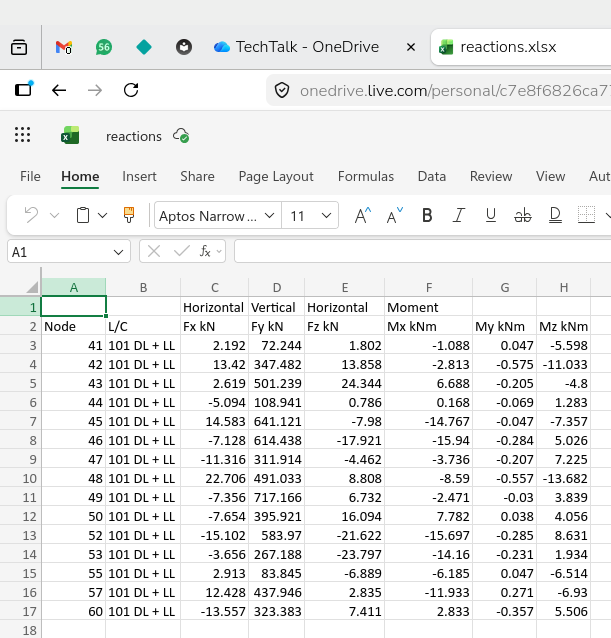
The reactions from a STAAD.Pro analysis can be exported to Microsoft Excel format. This data can be read into a DataFrame and the data processed using Pandas. Here are the reactions when viewed in Microsoft Excel.
Note
- There are two header lines. By default, Pandas assumes the first row in the file to be column names.
- The second line is treated as the first row of the DataFrame. To remedy this:
- Store the first row (row index
0) as column names, - Clean the column names by removing
kNandkNm, - Discard the first row of the DataFrame, and
- Rename the row numbers starting from
0. - Rename the columns from the stored values from first row.
- Store the first row (row index
For example:
- Determine the minimum and maximum reactions.
- Classify reactions into groups based on dividing the interval between maximum and minimum reactions into a specified number of equal class intervals.
- Given the SBC, detemine the size of the isolated footing for the most severely loaded footing in each group.
Tip
Install the openpyxl package if you want to read and write Microsoft Excel files.
Code
Let us write two functions:
read_staad_reactions(fname: str) -> pd.DataFrameto read data from an.xlsxfile, clean up the rows to assign column names, reset the row index and set the data type for the data in columns pertaining to reaction components.group_staad_reactions(df: pd.DataFrame, bins: int=5) -> pd.DataFrameto group the data into bins and assign names to each group.main()to set up the filename, call the first function to read and clean up the data and the second function to group the data. Finally, the grouped data is saved to a Microsoft Excel.xlsxfile.
- Lines 11-15: Clean up columns names
- Lines 18-20: Set
dtypeof column names tostrand of columnsFx,Fy,Fz,Mx,My,Mztofloat64. - Line 21: Return the cleaned DataFrame.
- Lines 24-25: Calculate eccentricity in (metres) about
xandyaxes. - Line 27: Create a list with custom labels to be used for each bin.
- Line 28: Create a new column
footing_typeand populate it with custom labels after cutting the range of values in columnFyinto10equal sized bins. This new column is populated with thecustom_labelsbased on the interval to which the value inFybelongs. Note: The number of items incustom_labelsmust be equal to the number of bins. - Line 29: Sort the values on the DataFrame based on values in
footing_typeand additionally byFyin case there are more than one row with the same value forfooting_type. - Line 31: Return the grouped and sorted DataFrame.
We are now ready to write the main() function:
Note
- Line 34: Call
group_staad_reactions()to read the data, clean and set the column names, set the dtypes - Line 35: Split into
5bins by splitting the range of values in columnFyand assign custom labels, - Line 36: Display the contents of the DataFrame.
- Line 38-40: Set the name of the output file.
- Line 43: Save the grouped, sorted DataFrame to output file.
We are now ready to set up the initial values and call main():
Note
- Line 41: Use
if __name__ == "__main__"to specify the lines to execute when the file is called directly as the__main__file and to ignore when the file is imported as a module. - Line 42: Set the input filename as
fname = reactions.xlsx. If this application is converted to a CLI application, this can come from the command line argument. - Line 43: Invoke
main()and execute the program if called directly.
Recap
This session covered or mentioned several topics that are not the main topics of discussion. They are listed here as a reminder to study their documentation in detail for future use:
- The online free book Think Python, 3ed., Allen B. Downey is an excellent resource for beginners and experts alike. It is worthwhile digging deep into this book.
- The
pathlibbuilt-in package is a comprehensive library for manipulating files paths, files and directories. It is extremely useful when automating tasks that use the file system. - The
dataclassesbuilt-in module provides thedataclassdecorator that simplifies implementing classes. - The
sysbuilt-in module gives access the the system information. - The
typerexternal package is an excellent tool to build CLI applications. - The
pydanticpackage is a replacement fordataclassand is part of other packages such as FastAPI and SQLModel that you may find useful in the future.
The Pandas package is gigantic and we have not even scratched the surface. Pandas has stiff competition from Polars which is worth exploring. Narwhals may help you use either of them and quickly switch from one to the other without having to rewrite your code.